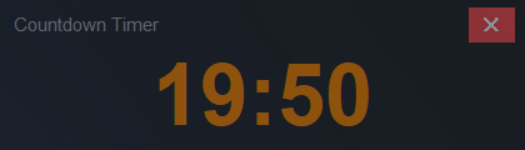
Welcome to the QdoShare Countdown Timer help center. Here you'll find detailed instructions for getting started, using advanced features, and troubleshooting common issues. Can't find what you're looking for? Contact us at support@QdoShare.com.
Getting Started
Installation
After purchase, you'll receive a download link for CountdownTimer.exe. Save the file to your computer (Desktop is a good location).
Double-click CountdownTimer.exe to launch the application. No installation required – it runs directly from the executable file.
The timer opens in the top-right corner of your screen. Click and drag the window to any position you prefer.
Your First Timer
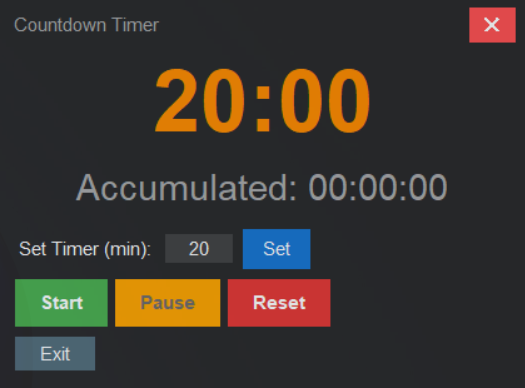
The timer starts with a default 20-minute countdown. Simply hover your mouse over the window to reveal the controls, then click "Start" to begin your first timing session.
Basic Usage
Setting the Timer
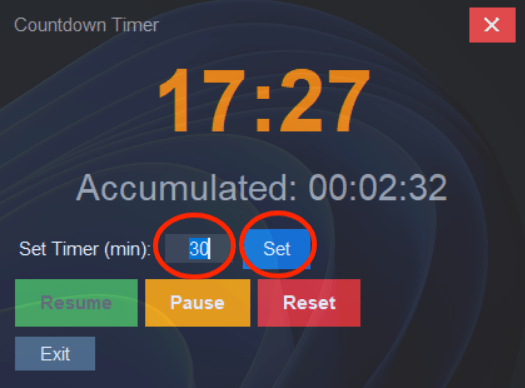
To set a custom timer duration:
Hover over the timer window to reveal controls.
Enter the desired time in minutes in the input field.
Click "Set" to update the timer.
Note: You can only change the timer duration when it's not running. Pause or reset the timer first if needed.
Starting, Pausing, and Resetting
Use the control buttons to manage your timer:
- Start: Begin the countdown. Button changes to "Resume".
- Pause: Temporarily stop the timer. Click "Resume" to continue.
- Reset: Return the timer to its current set duration.
Advanced Features
Always on Top
The timer window always stays above other applications, ensuring you never lose track of time. This is particularly useful when working with full-screen applications or multiple windows.
Transparent Interface
The timer uses a semi-transparent dark background that doesn't obstruct your view of the desktop. The transparency automatically adjusts:
- Collapsed state: 55% opacity (minimal presence)
- Expanded state: 88% opacity (better visibility when using controls)
Accumulated Time Tracking
The timer tracks how much total time you've spent across all timing sessions. This accumulated time display shows hours, minutes, and seconds.
Note: Accumulated time only increments while the timer is running. Pausing the timer stops the accumulation.
Keyboard Shortcuts
For power users, keyboard shortcuts provide quick control:
- Space: Start/Pause the timer
- R: Reset the timer
- Esc: Exit the application
- C: Toggle controls visibility
Completion Notifications
Fullscreen Alert
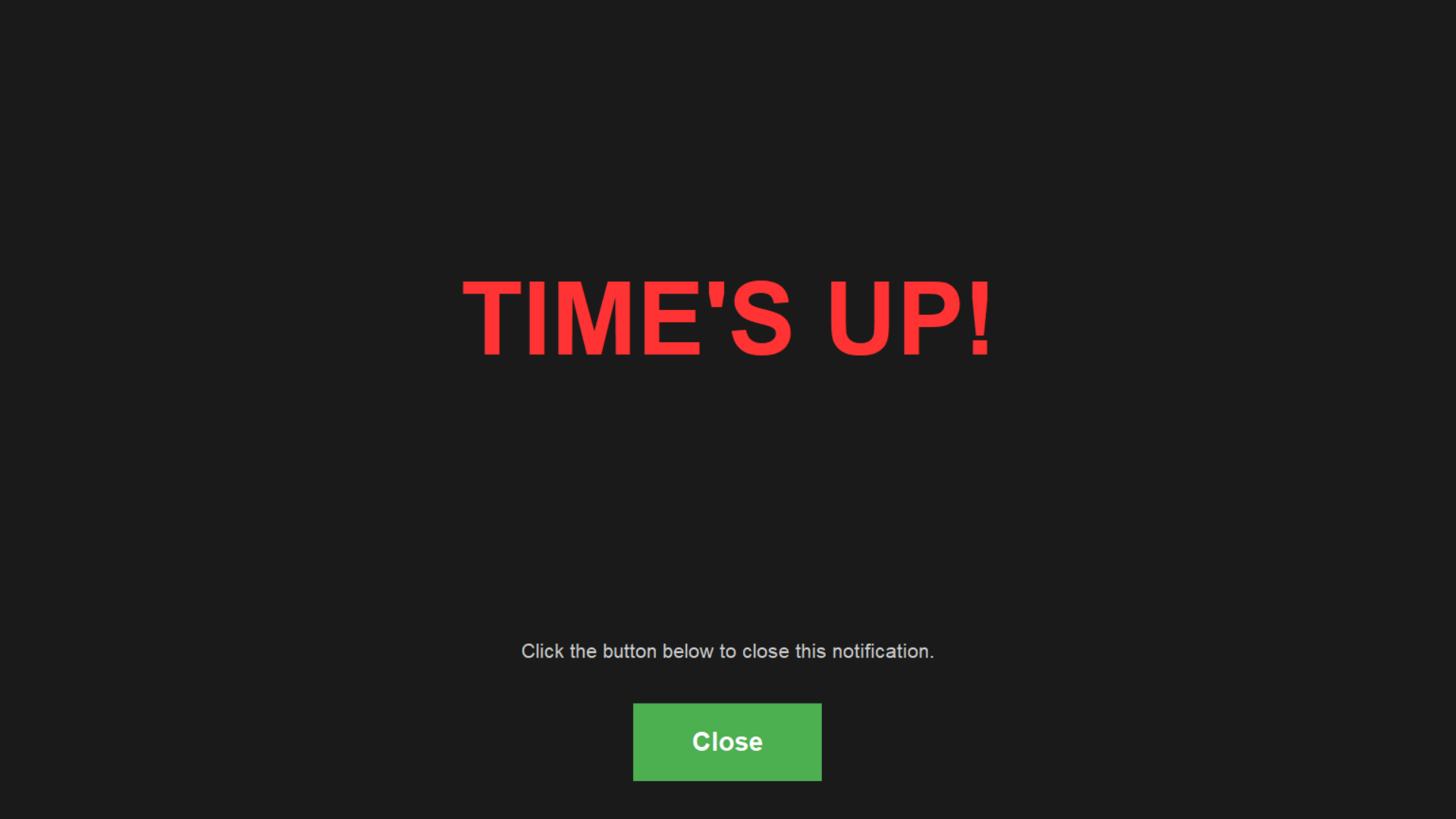
When the timer reaches zero, a fullscreen notification appears with the text "TIME'S UP!" in large red letters. This ensures you never miss a timer completion.
Dismissing the Alert
The fullscreen notification is a modal dialog that blocks interaction with other applications. You must click the "Close" button to dismiss it and return to your work.
Tip: This design prevents accidental dismissal and ensures you acknowledge the timer completion.
Continuing Work
After dismissing the alert, the timer resets to its set duration and remains in the collapsed state, ready for your next timing session.
Troubleshooting
Common Issues
The window won't stay on top
Some fullscreen applications (games, video players) may override the always-on-top behavior. This is a Windows limitation. Try minimizing the fullscreen application or using the timer in a different screen configuration.
Controls don't appear on hover
Make sure your mouse is directly over the timer window. Try moving the mouse slowly across the countdown display. If the issue persists, try clicking the timer window to ensure it has focus, then hover again.
Timer notification doesn't show
Check if another application is in fullscreen mode. The notification may be appearing behind the fullscreen window. Try minimizing other applications before the timer completes.
Application won't start
Ensure you have the correct version of Windows (7 or later). Try running the application as administrator by right-clicking and selecting "Run as administrator". Check Windows Defender or antivirus software isn't blocking the executable.
How do I move the window?
Click anywhere on the timer window and drag with your mouse. The window will follow your cursor. Release the mouse button when the window is in your desired position. The window will stay there until you move it again.
How do I adjust the timer's transparency?
Press Shift + T repeatedly to cycle through five transparency levels
— from nearly invisible (~15% opacity) to fully opaque. Lower opacity is ideal for
background awareness; higher opacity is better during high-stakes focus sessions.
You can also customize this behavior and other hotkeys in your
config.json file. See our blog guide
QdoShare Timer Settings
That Most Users Miss for full details.
Can QdoShare start automatically when I turn on my computer?
Yes. QdoShare doesn't add itself to startup automatically by default, but you can
enable it: press Windows key + R, type shell:startup,
and press Enter. Then create a shortcut to CountdownTimer.exe in the
folder that opens. Combine this with the "start minimized" setting so the timer
launches quietly in the background — ready when you need it.
Find more power-user configuration tips in our
timer settings guide.